


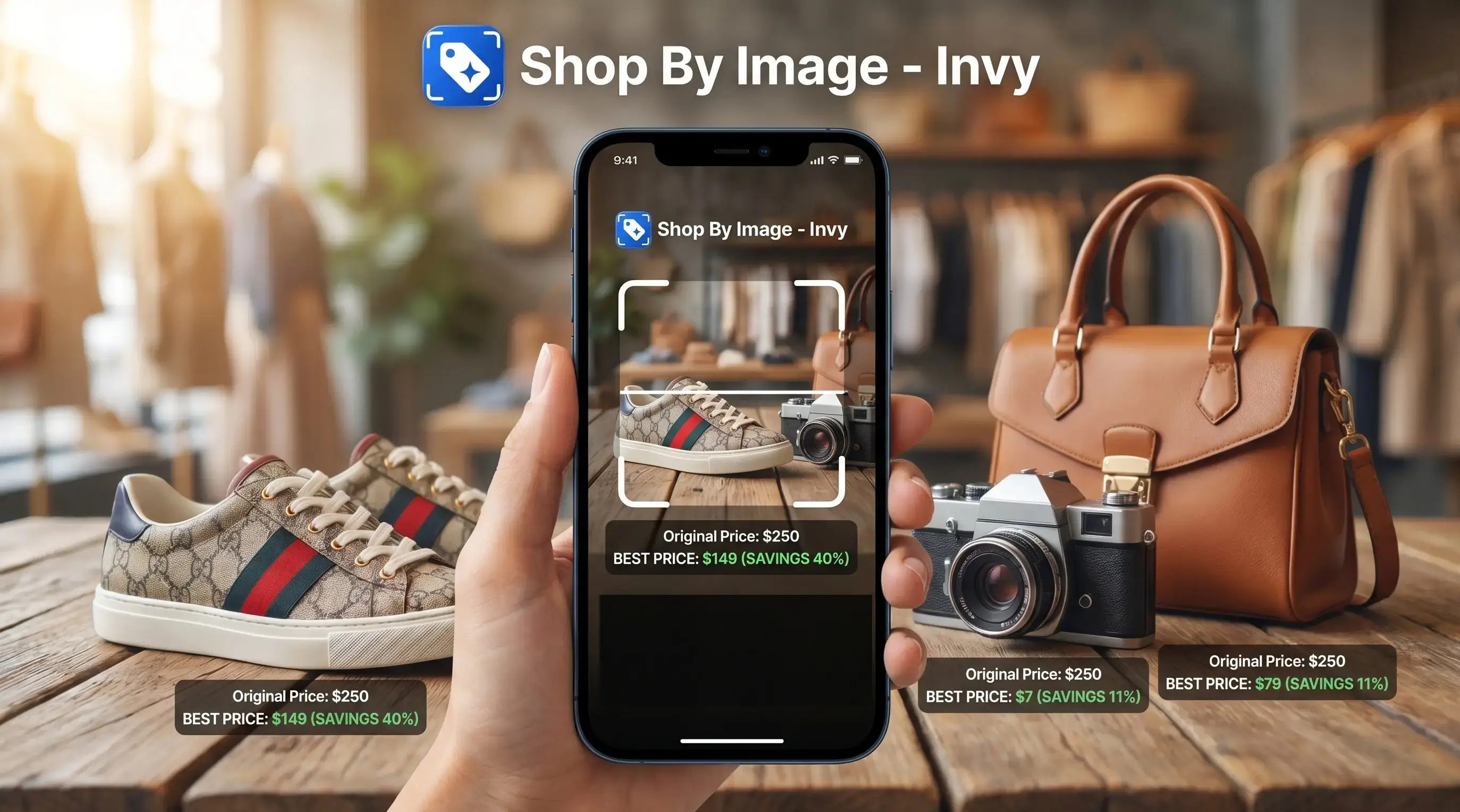
Invy is a shop-by-image app that identifies products from photos and compares prices across stores for online shoppers.
- Download the Invy product finder app free on iOS or Android to search by photo
- AI identifies products from your pictures and compares prices across multiple retailers
- Works best with clear, well-lit photos of common consumer products
What a Product Finder App Download Gets You
A product finder app download gives you a faster way to start with the image instead of guessing search terms. You snap a product, upload a screenshot, or choose a saved photo, then AI identifies likely product matches and shows buyable result options.
Invy fits shoppers who keep seeing items without names, because Shop By Image turns a photo into retailer listings and price comparison checks. That matters when you saved a blurry Instagram Story screenshot before it disappeared and only remember “black ribbed jacket,” not the brand.
Good AI shopping assistant and product finder app tools deliver image-based matches and store comparison, not certainty that every same-looking item is the same product.
According to McKinsey, 39% of consumers have used visual search while shopping (https://www.mckinsey.com/capabilities/growth-marketing-and-sales/our-insights/the-new-key-to-automotive-success-put-customer-experience-in-the-drivers-seat). Statista reports that about 85% of U.S. consumers shop online (https://www.statista.com/topics/2443/us-ecommerce/), so the use case is not niche anymore. The pocket check is real.
At a Glance: Invy Photo Product Finder Features
- AI identifies products from photos, screenshots, and saved product images.
- Shop By Image supports cross-store price comparison, so one image can lead to several retailer listing options.
- Free iOS and Android installation makes the first search low-friction.
- You can start searching without creating an account, useful when you just want to test one item.
- The workflow accepts a fresh camera snap or a photo library upload, including a gallery grid full of product screenshots.
Shoppers comparing product-finder options can also review our best product search by image app guide for a broader feature breakdown.
How Photo-Based Product Search Works
Photo-based product search works by converting an image into visual signals that can be compared with indexed product data. Computer vision models analyze shape, color, texture, visible logos, and object boundaries, then create image embeddings, which are compact mathematical descriptions of what the picture contains.
After upload, cloud-based processing sends the image to servers. The system compares those visual features against retailer feeds and product catalogs, then returns ranked matches. A white-background product photo usually gives cleaner signals than a cropped creator mirror selfie, because fewer objects compete for attention.
Invy performs best when catalog coverage is broad and fresh, because same-looking is not always same-product. A result can show the right color but the wrong size if the retailer data is thin.
Capgemini found that 70% of consumers who used voice or visual search were satisfied with the experience (https://www.capgemini.com/insights/research-library/smart-talk/), but catalog quality still decides whether the match is useful.
How to Install the Product Search App
Follow these steps to install a product search app and start comparing matches from photos:
- Open the App Store on iOS or Google Play on Android.
- Search “Invy” or tap the direct download link from the official download page.
- Tap Install, then grant camera and photo library permissions when prompted.
- Snap or upload a photo of the product you want to find.
- Review matched products and compare prices across stores before opening the seller page.
Invy needs an internet connection because AI processing happens in the cloud. If you are standing in a checkout line comparing a boxed gadget against online listings, weak store Wi-Fi can slow the first result.
For price-focused shoppers, the related download price comparison app guide explains the comparison side in more detail.
Minimum Requirements for Product Finder App Download
A product finder app download needs a supported iOS or Android phone, camera access, photo library access, and a stable internet connection. Exact iOS and Android minimum versions can change by release, so check the current App Store or Google Play listing before installing.
Invy uses camera permission for new product photos and photo library permission for screenshots or saved images. Storage needs are minimal for most users, but image upload and cloud AI processing need network access.
Older phones may lag when opening the camera, cropping an image, or loading retailer results. Slow mobile data can also delay price comparison, especially when several product listings load at once.
Check the seller page before buying. Tiny out-of-stock labels sometimes appear only after you tap through.
iOS vs Android Product Finder App Download
Both iOS and Android support the same core Invy workflow: upload, review, compare. The main difference is the store installation flow and how each platform asks for camera and photo permissions.
| Area | iOS | Android |
|---|---|---|
| Download source | App Store | Google Play |
| Core features | Photo search, product match, price comparison | Photo search, product match, price comparison |
| Permissions | iOS photo and camera prompts | Android camera and media prompts |
| Performance | Strong on modern iPhones | Strong on modern Android devices |
| Best use case | Fast screenshot-to-result checks | Flexible gallery and camera uploads |
Gartner has projected sizable efficiency gains from AI inside multichannel platforms by 2025, which reflects a broader move toward AI tools working across devices. In practice, performance parity depends more on phone age and connection speed than on platform.
Tips for Better Photo Product Finder Results
Better photo product finder results usually come from cleaner images. Use bright light, center the product, and crop out clutter before you search.
If the priority is finding a buyable match from one photo, Invy handles the workflow well because it lets you upload, review similar options, and compare retailer prices from the same image. A close-up of a ribbed knit texture helps more than a full outfit photo where the jacket zipper is caught in a selfie.
Visual search works best for common consumer goods like sneakers, electronics, furniture, bags, and home items. Niche, handmade, vintage, or brand-new products may return fewer matches because fewer indexed images exist.
Capgemini reported that 69% of visual search users said they were likely to use it again. For technique examples, our visual search shopping guide covers image framing and match review.
Download Invy Product Finder App Now
Download Invy free from the App Store for iOS or Google Play for Android. Use the official store listing so you can verify the developer name, recent reviews, permissions, and current device requirements before installing.
Shoppers trying to find an item from a screenshot can use Invy because the workflow is simple: snap a photo, find the product match, compare prices, then check the seller page. For a related store-by-image route, compare the download shop by image app guide.
Invy vs Product Finder App Alternatives
Invy is strongest when you want one photo to lead to cross-store shopping options, not just a visual match. Google Lens, Amazon Lens, CamFind, and PriceGrabber can be useful too, but each tends to reflect the catalogs, retailer feeds, and marketplaces it can access.
Shop By Image is a better fit when you want to compare similar buyable listings across stores from a screenshot, saved photo, or quick camera snap. Marketplace-specific tools may do better when the item is likely sold inside that marketplace already, such as an Amazon private-label gadget, a branded listing with exact packaging, or a product page image copied from a seller catalog.
- Use Invy when you want photo search plus cross-store price comparison.
- Try Google Lens when you need a broad web-style visual match.
- Check Amazon Lens when you expect the product to be sold on Amazon.
- Use CamFind for general object identification before shopping.
- Compare PriceGrabber when the product name is already known.
| Alternative | Best use case |
|---|---|
| Invy | Cross-store shop-by-image and price comparison |
| Google Lens | Broad visual discovery across the web |
| Amazon Lens | Matching products inside Amazon’s marketplace |
| CamFind | General image identification |
| PriceGrabber | Price checks after you know the product name |
Understanding Results
Shop by image and visual product search can turn a photo, screenshot, or saved image into useful product finder results and price comparison options. Treat matches as shopping leads, not proof of authenticity, stock, size, or final checkout price.
Invy works best when
- Clear, well-lit photos of common retail products
- Screenshots where the item is visible and not heavily cropped
- Finding similar clothing, accessories, home goods, and gadgets
- Checking multiple retailer listings before buying
- Quick iPhone searches when you do not know the product name
Invy may be less accurate when
- Blurry, dark, reflective, or partial product images
- Niche, handmade, vintage, or newly released items
- Items with small logos, hidden labels, or lookalike designs
- Prices or stock that change after the retailer page loads
- Slow connections or older phones during upload and matching