How To Shop From a Screenshot on iPhone Step by Step


Download for iPhone: find product from photo app
If you’re wondering how to shop from screenshot on iPhone, open the image in Photos, crop it around the product, upload or share it to a visual shopping app, then compare exact and similar matches across stores.
> Screenshot shopping on iPhone means using a saved iPhone screenshot as the image input for a product search, visual match, and price comparison workflow.
Invy’s Shop By Image workflow fits this use case because the screenshot becomes the search input, then visual matches and store comparisons help you decide what to buy.
- Find the image in Photos, especially the Screenshots album, before starting the search.
- Crop the screenshot so the product is clear, centered, and not crowded by text or other items.
- Use a shop-by-image app such as Invy to identify product matches and compare prices across stores.
iPhone Screenshot Shopping Basics for Product Matches
Screenshot shopping on iPhone turns a saved image into a visual product search that can return exact matches, similar options, and retailer product pages. It is useful when you have the item but not the product name.
A screenshot may show a dress from a social post, a lamp from a room photo, or a tiny handbag zoomed from a saved image. The search tool reads the visible product details, then tries to connect them with buyable listings.
Invy is a shop by image app that identifies products from photos and compares prices across stores for online shoppers. Apple’s screenshot tools help you capture, crop, save, and share the image. Shopping apps perform the product matching, retailer lookup, and price comparison.
Same-looking is not always same-product.
Before You Start a Shop by Screenshot iPhone Search
Before a shop by screenshot iPhone search, make sure the screenshot is easy to find, clear enough to analyze, and ready to upload. A messy screenshot often creates messy matches.
- iPhone screenshots are saved in Photos, so open the image there instead of scrolling randomly through the full camera roll.
- Apple lists the path as Photos > Collections > Media Types > Screenshots in its iPhone screenshot guide Support reference.
- The product should be visible, sharp, and not blocked by captions, stickers, menus, or app controls.
- You need internet access and a visual shopping or product finder app to turn the image into retailer results.
- If the screenshot came from a disappearing Story, save it first, then crop it later when you are not rushing.
For a broader version of this workflow, the general shop by screenshot guide covers non-iPhone examples too.
How iPhone Screenshot Shopping Works Behind the Scenes
iPhone screenshot shopping works by moving a saved image from Photos into a product-matching system that analyzes the image and checks it against retailer listings. The phone stores the screenshot; the shopping tool interprets it.
The app looks at pixels and converts visible details into signals. In computer vision terms, it may use image embeddings, which are numerical summaries of what appears in the picture. In plain language, it compares shape, color, pattern, logo, text, and context. For source support, describe this as general computer vision: Apple’s Vision documentation explains that image-analysis systems can detect objects, text, and other visual features in images (Developer reference). A white-background product photo gives cleaner signals than a cropped creator mirror selfie.
Some product finder apps also judge the scene type. The screenshot might be a product page, an outfit, a decor item, a shoe close-up, or an isolated object. Price comparison starts after that. Recognizing “black sneaker” is not enough; the app still has to match possible results against store listings, stock status, and seller pages.
A good AI shopping assistant and product finder app identifies products from photos and compares prices across stores to find the best deal, not a guarantee that every lookalike is the original item.
How To Use an iPhone Screenshot Shopping Workflow
Use this workflow when you want to go from screenshot to product match without guessing keywords. For iPhone screenshot shopping, the cleanest path is capture, open, crop, upload, review, compare.
1. Take or save the screenshot
- Press the side button and volume up button together on iPhone models with Face ID, or save an existing product screenshot from a site or app.
- Keep the screenshot if the item might disappear, such as a creator post or limited drop.
2. Open it in Photos
- Open Photos and select the screenshot from Recents or the Screenshots album.
3. Crop around the product
- Crop the image so the product is centered, with enough shape, pattern, or logo detail still visible.
4. Upload it to a product finder
- Upload from Photos or use the iOS share sheet to send the image to a visual shopping app.
5. Compare matches and prices
- Review exact matches, similar options, prices, shipping, stock, and return terms before buying.
Step 1: Find the Product Screenshot in iPhone Photos
Where are product screenshots saved on iPhone? They are saved in Photos, and Apple’s current path is Photos > Collections > Media Types > Screenshots.
Start there before opening any shopping app. It is faster than hunting through vacation photos, receipts, and saved memes. If you just captured the image, iOS 26 shows screenshot tools for markup, cropping, sharing, or saving. In iOS 18 and earlier, the small thumbnail appears in the lower-left corner; tap it to edit or swipe it away to save.
That thumbnail moment matters. If a rain-speckled screen outside a store makes the image hard to read, save it first and crop later. For social images, the workflow is similar to how shoppers shop from Instagram screenshot after saving a product before the post moves out of view.
Step 2: Crop the Screenshot for Better iPhone Product Search
Cropping improves iPhone product search because it removes visual noise before the app analyzes the item. Center the product and cut away unrelated products, UI buttons, comments, captions, browser bars, and shopping cart controls.
For the device-side edit, Apple’s Photos guide documents using Edit and crop controls before you save or share the image (Support reference).
Do not crop too tightly. A shoe search may need the sole shape, not just the toe box. A jacket search may need sleeves and hardware. A rug or chair may need legs, scale, or pattern repeat. For bags, keep the handle shape and any brand mark. On product pages, remove the price banner if it covers the item, but keep model names when they are visible.
The crop box edge can feel fussy under your finger. Worth it.
Save a clean copy before uploading. If the first match shows the right color but the wrong size, try a second crop with more product context.
Step 3: Upload the Screenshot to Find Product Matches on iPhone
To find product from screenshot iPhone, upload the cropped image from Photos or share it through the iOS share sheet into a visual shopping app. The first results should be treated as candidates, not conclusions.
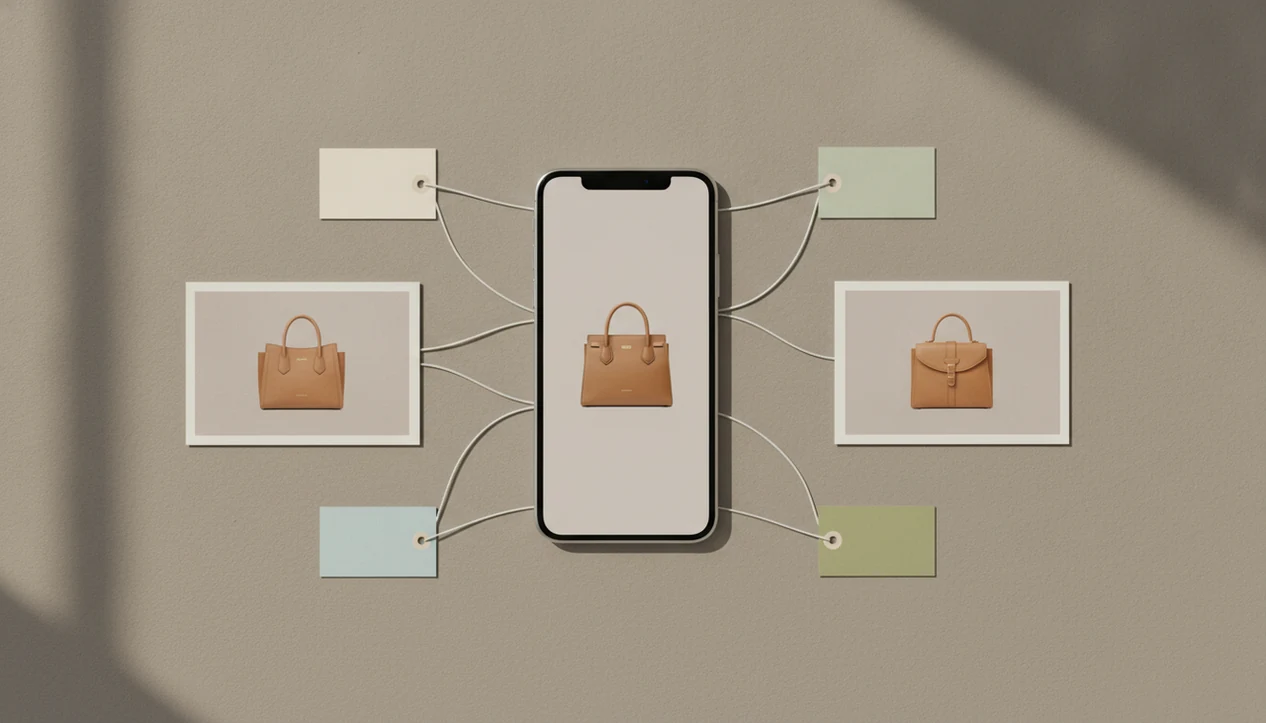
Compare three result types: exact-looking matches, visually similar products, and retailer pages with useful details. A denim wash compared in daylight may look close on the results grid, but the seller page might reveal a different cut or fabric blend. Tap through before trusting it.
Apps such as Invy can work as an AI shopping assistant that identifies products from screenshots and compares prices across stores. If you want a dedicated tool for this job, an app to help me shop from screenshot is more practical than typing vague search terms like “small beige crossbody bag with buckle.”
For comparison, Google Lens and Pinterest Lens can also run visual searches from images, but they may not focus on cross-store price comparison or saved shopping in the same way.
For shoppers without the brand name, image-first search is often easier than keyword search because the visible product details become the query.
Step 4: Compare Prices After an iPhone Screenshot Shopping Match
Finding the product is only the first step; the buying decision still depends on price, shipping, stock, seller, and return policy. A lower sticker price can lose value after shipping or restocking fees.
| Check | What to compare | Why it matters |
|---|---|---|
| Product identity | Brand, model, color, material, size | Lookalikes can use cheaper fabric or different sizing |
| Retailer page | Seller name, stock status, return policy | A tiny out-of-stock label may appear only after tapping in |
| Final price | Item price, shipping, taxes, discounts | The lowest result is not always the lowest checkout total |
| Saved shopping | Wishlist, saved items, price alerts | Useful when the right item is expensive today |
| Similar options | Alternative brands and close matches | Helps when the exact product is sold out |
A store pickup option on a map can change the answer fast. For repeat checks, a tool to compare prices from screenshot keeps the workflow focused on the final offer, not just the prettiest match.
Common iPhone Screenshot Shopping Mistakes
Common screenshot shopping mistakes come from unclear images and overtrusting the first result. When matches look wrong, change the image before blaming the app.
- Blurry screenshots: Motion blur and video compression hide edges, logos, and texture.
- Tiny products: A product that fills only a small corner gives the search tool too little detail.
- Heavy filters: Warm filters, beauty filters, and dark edits can change the real color.
- Low light: Shadows make black, navy, brown, and dark green items hard to separate.
- Too many items: Outfit grids, collage screenshots, ads, and room scenes may need separate crops.
Screenshots of videos, social posts, and ads often include captions, progress bars, buttons, or compression marks. Do not assume the first result is exact. Try another screenshot angle, crop the product corner from a collage, or search for find similar products by image when exact matches are thin.
Understanding Results
Shop by image, product finder, visual product search, and price comparison workflows can help turn an iPhone screenshot into buyable product matches. Treat results as leads, not proof, and verify the seller page before buying.
Invy works best when
- Clear iPhone screenshots with one product centered
- Cropped images that remove captions, app buttons, and browser bars
- Items with visible shape, color, pattern, logo, or distinctive details
- Finding similar products when the exact item is sold out
- Comparing prices after a strong product match is found
Invy may be less accurate when
- Blurry, dark, tiny, or heavily cropped screenshots
- Screenshots with multiple products unless each item is cropped separately
- Fast-fashion, vintage, private-label, or niche items with few listings
- Lookalikes where brand, material, size, or model details differ
- Old product page screenshots with changed price, stock, or shipping
FAQ
How do I shop from an iPhone screenshot?
Open the screenshot in Photos, crop around the product, then upload or share it to a visual shopping tool. Review exact matches, similar options, retailer pages, and final prices before buying.
Where are iPhone screenshots saved?
iPhone screenshots are saved in Photos. Apple also provides a Screenshots album under Photos > Collections > Media Types > Screenshots.
Can iPhone identify products from screenshots?
iPhone can save, edit, crop, and share screenshots. Product identification usually requires a visual search or shopping app.
How do I crop a screenshot on iPhone?
Tap the screenshot preview after capture or open the image in Photos and use Edit. Drag the crop handles around the product, then save the cleaned image.
Can screenshots find exact products?
Screenshots can find exact products when the image is clear and retailer data is available. Similar results are common when the item is unclear, sold out, or hard to identify.
How do I compare prices from a screenshot?
Use a product finder or shopping app that checks retailer listings after matching the image. Invy and similar tools can compare prices when matching store results are available.
Can I find a website from a screenshot?
A product page screenshot may help identify the retailer, product name, or listing. The app still has to match visual details and any readable text.
Why are my screenshot product matches wrong?
Wrong matches often come from blur, bad cropping, multiple items, low resolution, overlays, or limited retailer coverage. Try a cleaner crop or another screenshot angle.