
Screenshot Shopping Timeline From Save to Store Link


Download for iPhone: AI shopping assistant app
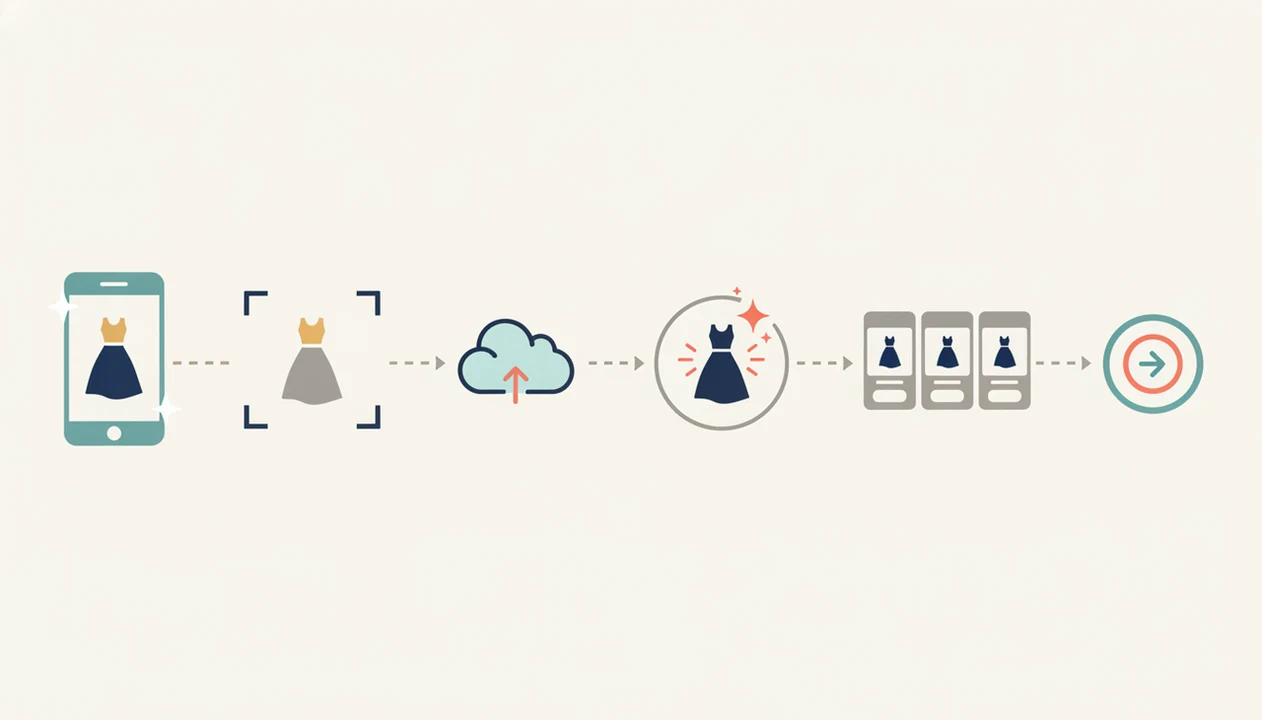
A screenshot shopping timeline is the path from saving an image to identifying the product, comparing matches, checking prices, and opening a retailer link to buy. The key stages are capture, crop, upload, recognition, match review, price comparison, seller verification, and purchase handoff.
> Definition: A screenshot shopping timeline maps the full shop-by-screenshot process from a captured screen image to product matches, price comparisons, and a retailer purchase link.
- Screenshot shopping starts with a visual cue, not a product name, so image quality and cropping matter.
- AI shopping tools try to recognize the item, separate exact matches from similar alternatives, and surface retailer links.
- The purchase step usually happens after a handoff to a store page, where shoppers should verify price, shipping, return policy, and seller legitimacy.
Screenshot shopping timeline definition and buyer promise
A screenshot shopping timeline is the full buying path from a saved screen image to a product match, price check, and retailer page. A screenshot is an image of what appeared on a phone or computer screen, so the search starts with pixels instead of typed words.
That changes the work. The tool has to infer the shopper’s intent from a jacket sleeve, sneaker sole, lamp shade, logo, or product card. The timeline usually runs through save or capture, crop, upload, product recognition, match suggestions, price comparison, and retailer handoff.
Invy can help here as a Shop By Image app that identifies products from photos and compares prices across stores.
A screenshot is a clue, not a receipt.
Five facts about the shop by screenshot process
- A screenshot is only a captured image, so the app must infer product intent from visible pixels, not a product name.
- Computer vision or similar AI performs product recognition by finding shapes, colors, textures, logos, and catalog-like patterns.
- The usual journey includes capture, import, identification, match review, price comparison, and a retailer click-out.
- Blurry, cropped, old, filtered, or generic screenshots can reduce match quality, especially for simple items like plain tees or black loafers.
- The biggest value is often comparing cheaper or better alternatives across stores, not just naming the item.
For shoppers, that means the shop by screenshot process is closer to product research than instant checkout. A rain-speckled screen outside a store can still start the search, but the final decision happens later, after the seller page is checked.
Before you start: screenshot shopping prerequisites
Before you start screenshot shopping, make the image and your buying intent clear. A better starting screenshot gives the matching tool more to work with and gives you fewer false leads to sort through.
Use this quick prep pass before the numbered workflow begins:
- Choose the sharpest screenshot or video frame you have, especially if the item has small details like stitching, hardware, texture, or a logo.
- Decide whether you need the exact SKU, colorway, and model, or whether similar alternatives would also solve the shopping need.
- Keep useful visual clues in the frame, including brand marks, material, scale, packaging, room context, outfit context, or product-card details.
- Remove screenshots that expose private messages, order numbers, account pages, payment details, addresses, or other sensitive information.
- Plan to verify the retailer page before treating any result as buyable, including stock, shipping, returns, seller name, and final price.
A clean screenshot helps. A clear buying standard helps even more.
Screenshot to purchase timeline mechanics behind image matching
Screenshot shopping works by turning a flat screen image into product candidates. The system may preprocess the image, detect objects, extract visual features, compare those features against catalog images, then rank retailer listings by similarity and usefulness.
In plain language, it tries to answer, “What visible item is buyable?” Image embeddings are one common technical idea here. They turn visual details into searchable patterns, so a ribbed knit texture or curved lamp base can be compared against product photos.
Historical screenshot-shopping tools used machine learning for the same basic job. CNET described one mobile app that analyzed screenshots and attached product images, prices, and retailer links when it identified an item Cnet reference.
After recognition, the system may pass data to price feeds, availability checks, retailer links, affiliate links, or wish-list saves. A good AI shopping assistant and product finder app that identifies products from photos and compares prices across stores to find the best deal delivers buyable results and alternatives, not proof that every lookalike is the exact item.
Six-step screenshot shopping timeline from image to store link
Use this six-step screenshot shopping timeline when you want a practical path from image to purchase decision.
- Save the screenshot from a product page, social post, ad, email, or video frame.
- Crop around the target item while keeping enough context to show category, shape, and scale.
- Upload the image from your camera roll, gallery, share sheet, or screenshot folder.
- Review exact matches, similar options, category labels, colors, materials, and product photos.
- Compare prices across stores, including shipping, taxes, discounts, stock status, and return costs.
- Verify the retailer page before buying, then open the store link only when the details line up.
The middle of this workflow is where the shopper needs product finding and price comparison, not just a visual guess. For clothing, compare exact matches against similar alternatives before buying. Same-looking is not always same-product.
Step 1: Capture a clear screenshot for visual shopping steps
Capture as much of the product as possible. Shape, color, logo, pattern, material, and visible context all help the later visual shopping steps. A white-background product photo is usually easier than a cropped creator mirror selfie, but both can work if the item is clear.
Screenshots from Instagram, TikTok, Snapchat, product pages, emails, and ads can all start the workflow. One industry source says 61% of social users say Instagram inspires their next purchase, which explains why a saved Story often turns into a shopping request Blog reference.
Social posts disappear fast.
Before saving, clear obvious blockers if you can. Notifications, captions, filters, stickers, dark video frames, and low resolution can weaken recognition. If the screenshot came from a Story, grab the cleanest frame before it vanishes.
Step 2: Crop the screenshot shopping image around the item
Crop the screenshot around the product you want, but do not shave off the clues that identify it. Leave enough context for category and scale, especially when the item is part of an outfit, shelf, room, or collage.
Too much background can distract the matching system. A full outfit photo may return the bag, shoes, sunglasses, and jacket instead of the jacket you wanted. A room screenshot can pull in the rug or sofa when you only wanted the lamp.
Over-cropping creates a different problem. It can remove straps, soles, handles, labels, stitching, or a texture that makes the item recognizable. A pinch-zoomed sleeve cuff detail might show the fabric well, but not the jacket shape. Crop once, then review the image like a buyer would.
Step 3: Upload the screenshot for product recognition
Upload or import the screenshot from the place your phone stores it. That might be the camera roll, gallery, share sheet, screenshot folder, or a shopping app’s image picker.
Once uploaded, an AI shopping assistant or product finder app tries to identify visible products. It may generate a category, attributes, possible brands, color names, style labels, and product matches. For a sneaker, that could mean separating a white leather low-top from a running shoe with a similar color block.
Some platforms have their own flows. Snapchat’s Shop Your Screenshots lets users open saved screenshots from Memories and view related products, but that does not make every platform behave the same way. If you need a broader workflow, a free app to find products from screenshots may be more flexible.
Not every screenshot becomes shoppable. A blurry street-style photo from a story may only produce similar options.
Step 4: Compare exact matches and similar-item recommendations
Treat the results as candidates, not answers. Exact product matches, close alternatives, dupes, lookalikes, and broad style recommendations can sit next to each other in the same result view.
Check brand, model, material, colorway, size, dimensions, and product photos before you trust a match. The familiar trap is a result that shows the right color but the wrong size. Generic-looking items, such as a black crossbody bag or beige ribbed sweater, may produce style matches instead of the exact SKU.
| Result type | What it means | What to check |
|---|---|---|
| Exact match | Same product listing or very likely same SKU | Brand, model name, photos, size, colorway |
| Close alternative | Similar item with different brand or detail | Material, dimensions, hardware, reviews |
| Broad style match | Same general look or category | Whether it solves the same need |
For generic items, find similar products by image is often more useful than forcing an exact-name search because many retailers sell near-identical styles.
Step 5: Compare prices across stores before purchase
The strongest product match is not automatically the strongest buying option. A store may show the item for less, then add high shipping, slow delivery, or a return fee at checkout.
Use a simple price comparison checklist:
- Item price
- Shipping cost and delivery date
- Discount codes or sale timing
- Estimated taxes
- Return window and return shipping
- Stock status by size or color
- Seller name and marketplace condition
Invy is useful when you want to identify products from photos and compare prices across stores before choosing where to buy. Still, prices can change quickly, and retailer data can lag. We have seen the tiny out-of-stock label appear only after tapping into the retailer page.
For shoppers comparing two retailer tabs side by side, a tool to compare prices from screenshot keeps the image and buying options in one workflow.
Step 6: Verify the seller before opening the store link
The store handoff is where many screenshot shopping timelines get weak. Many apps route users to a retailer page, affiliate link, wish list, or external checkout instead of completing the purchase in-app.
Before you buy, verify the seller name, return policy, shipping costs, payment security, reviews, and stock status. For seller checks, the FTC advises shoppers to research unfamiliar sellers, review return policies, and use secure payment methods before paying Consumer reference. Check whether the page is the retailer’s own listing, a marketplace seller, or a resale listing. Those differences matter when the item arrives late, damaged, or not as expected.
Do not assume a screenshot shopping app guarantees seller legitimacy or final checkout terms. It can surface a buyable result, but the retailer page controls the transaction. Human confirmation still matters, especially when the price looks unusually low or the product photos do not match the original screenshot.
The checkout line test is simple: would you still buy it after reading the return policy on your phone?
Common screenshot shopping timeline mistakes
These mistakes make the screenshot shopping timeline less accurate and less useful.
- The blurry save: Do not use blurry, filtered, obstructed, or over-cropped screenshots when you can capture a clearer frame.
- The lookalike assumption: Do not assume visually similar means identical. Same color, different model happens constantly.
- The skipped detail check: Do not skip size, material, model number, dimensions, and return-policy checks.
- The screenshot pile: Do not take many low-quality screenshots instead of one clear screenshot with the whole item visible.
- The reverse-search mix-up: Do not confuse ordinary reverse image search with a commerce-focused shop-by-screenshot process.
A regular reverse image search may find similar pictures. A shopping workflow should move toward product matches, similar options, prices, stock status, and retailer links. If your starting point is a short-form video frame, the shop from TikTok screenshot workflow needs extra care because motion blur hides product details.
Understanding Results
Shop by image and screenshot shopping can shorten the path from saved photo to store link, but a visual product search is not proof of an exact match. Use the product finder and price comparison results as leads, then verify the retailer page before buying.
Invy works best when
- Clear screenshots with the main item visible
- Cropped images that remove captions, borders, and clutter
- Products with distinct colors, logos, shapes, or patterns
- Comparing several retailer matches before opening a store link
- Checking current price, shipping, returns, and seller details at checkout
Invy may be less accurate when
- Blurry, filtered, low-resolution, or heavily cropped screenshots
- Old posts showing sold-out, discontinued, or resale-only items
- Outfits, rooms, or collages with multiple possible target products
- Marketplace listings with fast-changing price, stock, or seller terms
- Platform-specific saves, folders, or privacy settings that hide images
FAQ
What is screenshot shopping?
Screenshot shopping is using a saved screen image to find a product, compare buying options, and open a retailer page later. It starts with an image instead of a product name.
How do I shop a screenshot?
Save the screenshot, crop around the item, upload it to a visual shopping tool, review matches, compare prices, and open a retailer link. Check seller details before buying.
Can screenshots find exact products?
Screenshots can find exact products when the item is clear and distinctive. Exact matches are not guaranteed, especially with generic, blurry, cropped, or outdated images.
Is screenshot shopping reverse image search?
Screenshot shopping is related to reverse image search, but it is more commerce-focused. It tries to return product matches, similar items, prices, and retailer links.
What is Shop Your Screenshots?
Shop Your Screenshots is a Snapchat feature that can show related products from screenshots saved in Memories. Platform-specific tools work differently from independent Shop By Image apps.
Why are screenshot matches wrong?
Screenshot matches can be wrong because of blur, filters, low resolution, missing details, over-cropping, or unavailable products. Generic items may also return similar styles instead of the exact product.
Do screenshot apps complete checkout?
Many screenshot shopping apps hand users off to retailer pages, affiliate links, or external checkout flows. The final purchase terms usually come from the store, not the app.